
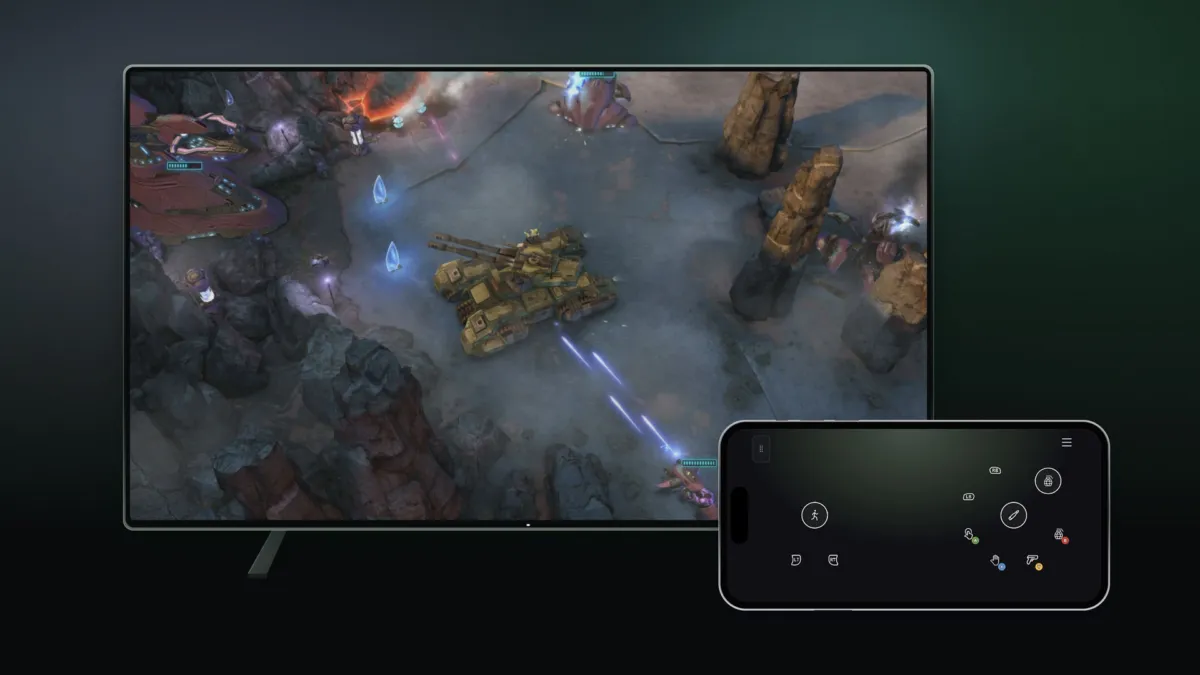
Xbox Cloud Gaming is rolling out two previews Microsoft announced on November 4: you can use your phone as a controller on a supported smart TV, and US players can connect the Xbox Nano over Wi-Fi instead of Bluetooth. Both are still being tested, so availability and the list of supported games or devices can be limited.
The phone option is the one most people will actually use. On a supported Android or iOS phone, the controls open in the phone’s browser, so no extra hardware is needed, and Microsoft says some games get controls tailored to how they play. Preview Features is the switch that turns it on, and you will find it under Settings > Account in the latest supported smart TV experience. When you launch a cloud game without a physical controller connected, the option to use your phone for that session appears on screen. Eurogamer reports that the phone pairs with the TV by QR code. The preview is rolling out in countries where Xbox Cloud Gaming is supported.
Cloud connect is the second preview, and it is US-only for now. Instead of a Bluetooth connection to the TV, Microsoft’s $49.99 Xbox Nano controller, which has no rumble, connects over your Wi-Fi straight to the cloud server running the game. Microsoft says that can reduce input latency, so the game feels more responsive. It is an early test, so it does not work with every cloud gaming experience yet, and for now it runs on supported smart TVs and the web.
Setting up cloud connect takes three steps. Use the Xbox beta app on Android, or the Xbox Accessories app on PC, to set up cloud connect on the Nano, with Xbox Insider enrollment required for the PC route. Then connect the controller to your Wi-Fi network in the app. Finally, open a supported Xbox Cloud Gaming experience and sign in with the same Xbox account you used during setup, and the controller connects through cloud connect. Microsoft’s setup guide has the full instructions.
The phone-as-controller preview is the part with real reach, because it removes the one thing that stops a TV box from being a console: the need to keep a gamepad nearby. QR code in, browser controls out, no pairing button and no charging cradle, which makes it exactly what a second screen in a living room wants. Consider a player with a smart TV and no controller on the coffee table. The trade is control fidelity. A phone screen is good for a launcher or a strategy game, and bad for anything that wants analog sticks, and Microsoft has been careful to say some games get their own tailored layouts rather than promising the whole library works. Cloud connect is the quieter half, and it matters because Wi-Fi to the server instead of Bluetooth to the TV removes a hop that every cloud game used to pay for.
The catch is that both are previews, and Microsoft is not promising a date when either one stops being a test. If you have been meaning to try a cloud game on the television without moving your sofa, this is the weekend to find out whether it feels like a console.
Edited by Kerwin Stewart, Editor-in-Chief · How we report

Comments
Join the discussion Would you use your phone as a controller for a cloud game, or do you still need a physical gamepad?
Loading comments…